




Overview
If you have outdated, duplicate, or incorrectly uploaded contracts, you can remove them from your Contracts Library to keep your repository clean and easy to search. Cloud Contracts 365 is designed to help you manage contracts in a central hub, so maintaining an accurate library is key for day-to-day contract visibility.
Before you start (important)
-
Deletion impact: Deleting a contract from your library will remove them from your instance. If you accidentally delete the wrong contract, please raise a support ticket to have it reinstated.
-
Dependencies: If the contract is tied to reminders, renewal dates, or e-signature activity, you may want to verify any downstream impact before deleting.
You can view a demo of how to delete a contract HERE or follow the steps below.
Step-by-step: Delete a contract from the Contracts Library list
Open Cloud Contracts 365.
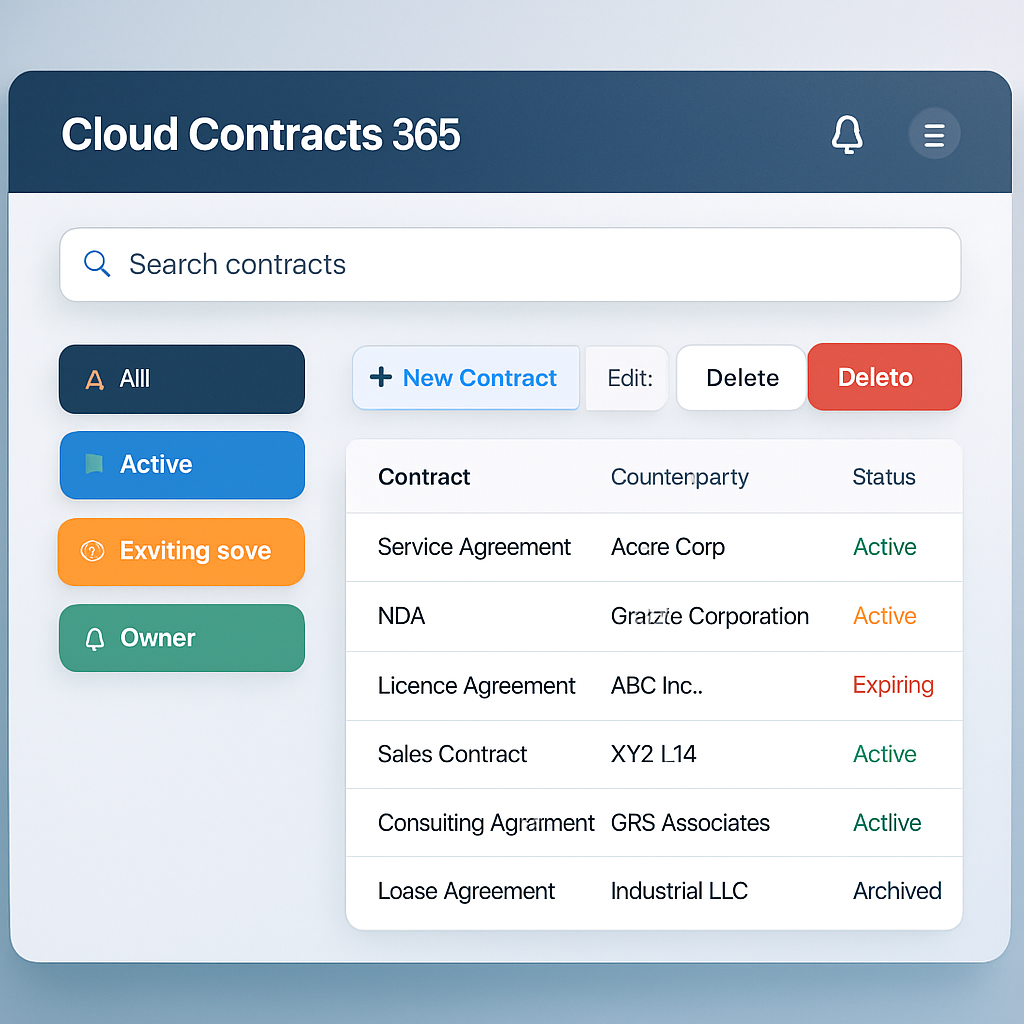
Navigate to 'Contracts'.
Locate the contract you want to delete:
- Use the search bar (e.g., search by contract name, counterparty, or reference).
- Apply filters if available (e.g., status, owner, date).
Select the contract by clicking on it
Click Delete
When prompted, confirm the deletion.
Verify the contract is removed:
The contract should no longer appear in the library list (you may need to refresh or clear filters).
Tip: Before deleting, open the contract briefly to confirm you have the correct version and that it’s not actively used for renewals, reminders, or reporting.
.png)






























.png?width=1749&height=1743&name=NBWA%202024%20-%20Silver%20Winner%20(1).png "Award Image")
.jpg?width=800&height=906&name=1725363000656%20(1).jpg "Award Image")